JPEG — smaller photographic pages
Use JPG for photos, scans and web uploads where smaller files matter. Compression can introduce visible artifacts around small text and sharp lines.
Preview handles one page without another app. Use a batch tool only when every page or repeated work is the problem.
JPEG is useful when a website or workflow accepts images but not PDFs. Keep the original PDF because conversion turns selectable text and links into pixels.
Both methods work locally on your Mac.
Quick answer
You do not need to install anything for a single page:
Apple documents Preview's File > Export format, quality and resolution controls. Repeat the workflow manually when you need another page.
Choose deliberately
Use JPG for photos, scans and web uploads where smaller files matter. Compression can introduce visible artifacts around small text and sharp lines.
Use PNG for screenshots, line art and document pages where lossless detail matters more than file size.
Use TIFF when a print, publishing or archival workflow explicitly requests it. Files are usually much larger.
When Preview is enough
Use Preview when you need one page and can choose its format, quality and resolution manually. It is already on the Mac.
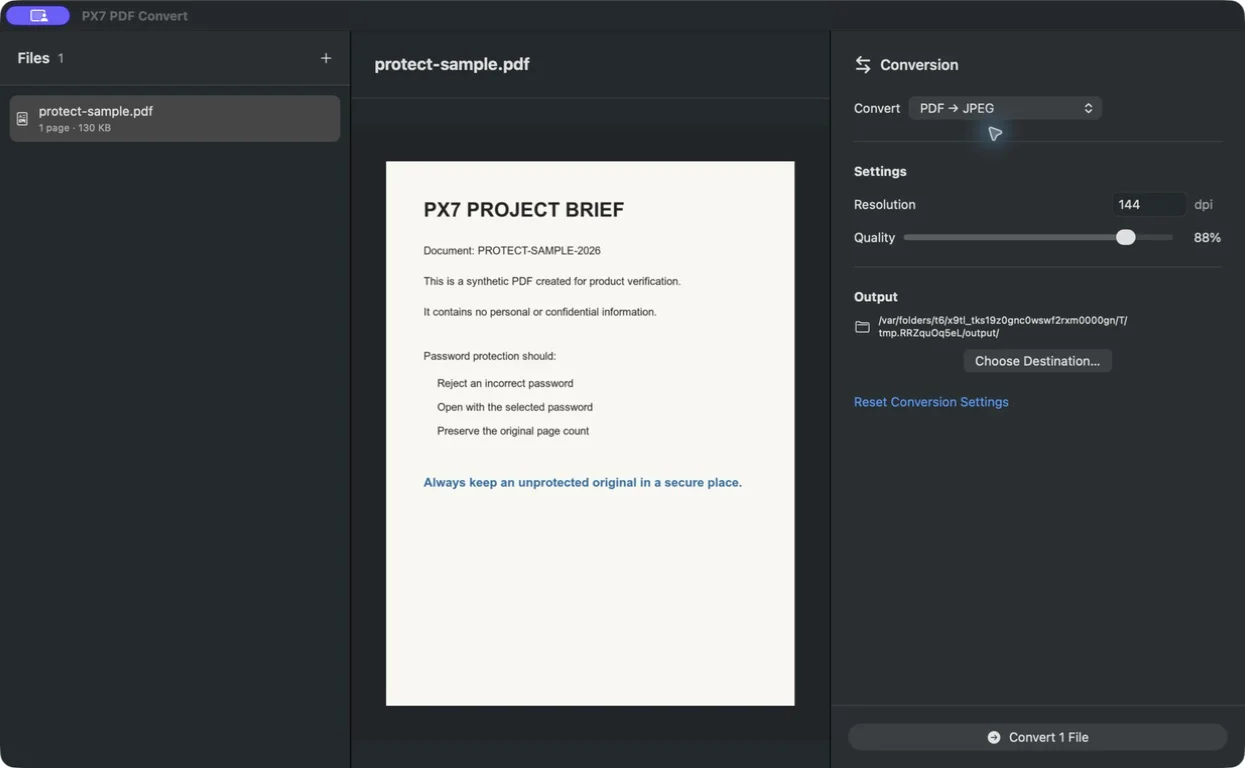
Use PX7 when you need every page from a PDF, several PDFs, or the same JPEG quality and DPI across the entire job. It also exports PNG or TIFF and never uploads the source. €15 once after a seven-day trial.
brew install --cask px7digital/tap/px7-pdf-convertAcrobat can export all PDF pages to JPEG, JPEG 2000, PNG or TIFF. If work already provides it, use its established export workflow.
Adobe documents its PDF-to-image formats and export settings.
Before exporting
Common questions
Yes. Open the PDF in Preview, select a page, choose File > Export, select JPEG, and save the image.
Preview's Export dialog saves the selected page. Repeat it manually for more pages, or use a batch converter when you need every page or several PDFs.
Yes. Preview exposes quality and resolution in its Export dialog. PX7 PDF Convert applies chosen JPEG quality and DPI consistently across every exported page.
No. JPEG is a raster image format, so the page text becomes pixels. Keep the original PDF when selectable text, links, forms or accessibility are important.