Add an entire PDF
Drag the PDF's Finder icon into the thumbnail sidebar of the open destination document.
Preview already combines a simple set of PDFs. Use a batch workspace only when the number of documents or page operations becomes the problem.
The important precaution is to preserve your source files: Preview saves changes automatically, so duplicate the originals before you rearrange them.
Both methods work locally on your Mac.
Quick answer
For two or a few documents, the built-in workflow is enough:
These steps follow Apple's Preview guide for combining PDFs, including its warning that changes are saved automatically.
Useful details
Drag the PDF's Finder icon into the thumbnail sidebar of the open destination document.
Open both PDFs, show thumbnails, select the required pages and drag them between sidebars.
Drag thumbnails into a new order. Select unwanted pages and delete them from the duplicated working copy.
When Preview is enough
Use Preview for two or a few PDFs when manual thumbnail dragging is clear enough. Duplicate the source files first.
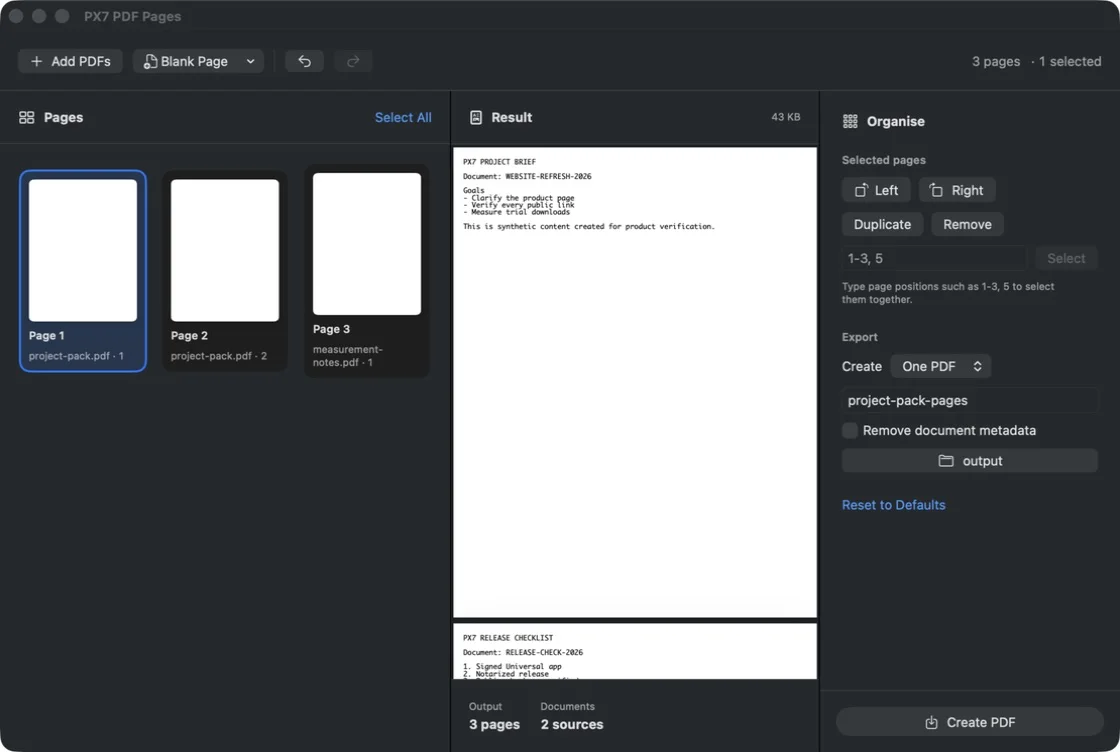
Use PX7 when you need a Finder selection or folder in one visual workspace, must rotate or duplicate pages, extract a selection, split into fixed-size parts, or inspect the complete result before saving. Originals remain untouched. €12 once after a seven-day trial.
brew install --cask px7digital/tap/px7-pdf-pagesAcrobat can combine PDFs and other file types, expand files into page thumbnails, reorder pages and remove unwanted items. If work already provides it, use its established workflow.
Adobe documents its desktop Combine files workflow.
Before sharing
Common questions
Yes. Open both PDFs in Preview, show thumbnails, then drag the pages or an entire PDF from one sidebar into the other.
Preview saves document changes automatically. Duplicate the PDFs first when you need to preserve each original, then merge the copies.
Yes. In Preview, drag thumbnails to reorder pages and select unwanted thumbnails before deleting them. Work on duplicates when the originals must remain unchanged.
Preview can add files through its thumbnail sidebar, but a dedicated batch workspace is easier when a folder contains many PDFs and you need to inspect the complete page order before saving.